Skip to content

Studio Mode

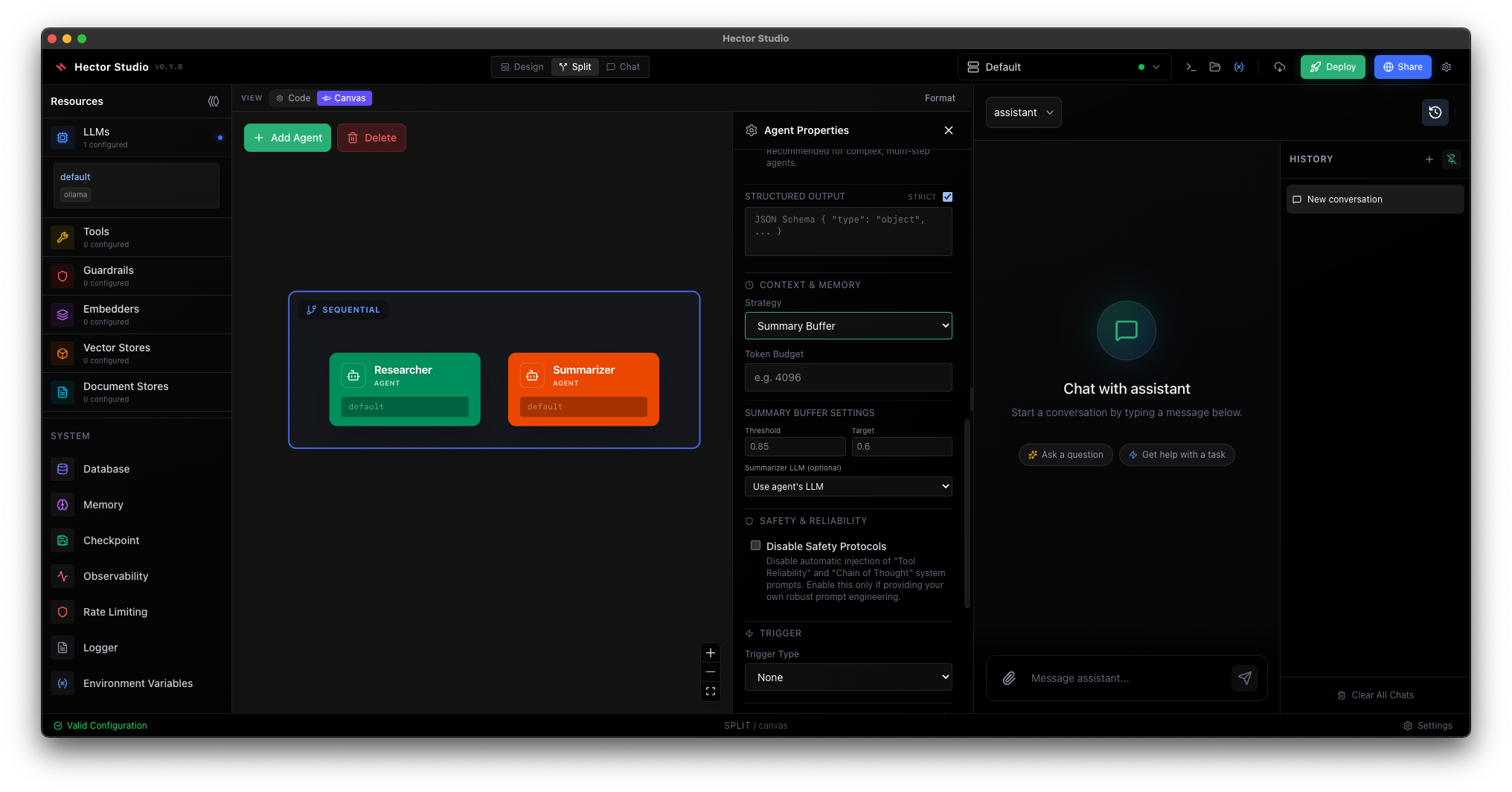
Visual configuration editor with auto-reload and real-time validation.

Overview

Studio mode provides:

  • Web-based configuration UI
  • Real-time YAML editing
  • Automatic validation
  • Hot reload on save
  • Zero-config startup

Enable Studio Mode

[!IMPORTANT] Studio mode requires a configuration file. It cannot be used with zero-config mode.

# Start studio with a config file
hector serve --config agents.yaml --studio

If you don't have a config file yet, create one first:

# Option 1: Create minimal config manually
echo 'version: "2"
llms:
  default:
    provider: openai
    model: gpt-4o
    api_key: ${OPENAI_API_KEY}
agents:
  assistant:
    llm: default
server:
  port: 8080' > agents.yaml

# Then start studio
hector serve --config agents.yaml --studio

Access at: http://localhost:8080

Web UI Modes

Hector's web UI has two modes:

Chat Mode (Default)

When running without --studio, the web UI provides a chat interface:

# Config mode
hector serve --config agents.yaml

# Or zero-config mode
hector serve --model gpt-4o --tools all

Features:

  • Full chat interface with agents
  • Streaming responses
  • Tool execution visualization
  • Multi-agent conversations

Studio Mode

When running with --studio and --config, the web UI provides configuration editing:

hector serve --config agents.yaml --studio

Features:

  • YAML configuration editor
  • Real-time validation
  • Hot reload on save
  • Chat + configuration in split view

[!NOTE] Studio mode requires --config. Using --studio without a config file will produce an error.

Studio Interface

The studio UI provides:

  1. Config Editor: YAML editor with syntax highlighting
  2. Validation: Real-time error checking
  3. Auto-Save: Changes saved automatically
  4. Hot Reload: Server reloads on save
  5. Schema Support: Autocomplete and validation

Configuration Workflow

1. Start Studio

# With existing config
hector serve --config myconfig.yaml --studio

2. Edit Configuration

Open http://localhost:8080 in your browser.

The editor shows your current configuration with:

  • Syntax highlighting
  • Line numbers
  • Error indicators
  • Autocomplete (if IDE configured)

3. Save and Reload

Changes are automatically: 1. Validated 2. Saved to file 3. Reloaded into runtime 4. Applied to server

No restart required.

4. Test Changes

After save and reload:

  • New agents are available immediately
  • Updated agents use new configuration
  • Server continues running
  • Active sessions preserved

Watch Mode

Studio automatically enables watch mode:

# config.yaml changes trigger reload

Watch mode monitors:

  • Configuration file changes
  • .env file changes

On change: 1. File is validated 2. Configuration reloaded 3. Runtime updated 4. Agents rebuilt

Validation

Real-Time Validation

Studio validates as you type:

  • YAML syntax errors
  • Schema validation
  • Required fields
  • Type checking

Errors displayed inline with line numbers.

Pre-Save Validation

Before saving, studio checks:

  • Valid YAML structure
  • All required fields present
  • No syntax errors
  • Schema compliance

Invalid configuration cannot be saved.

Post-Save Validation

After save, runtime validates:

  • Agent configurations
  • Tool references
  • Database connections
  • LLM configurations

Errors reported in logs and UI.

Creating Config from Zero-Config

If you've been using zero-config mode and want to switch to config mode (for studio or advanced features):

Step 1: Start Zero-Config and Export

# Run in zero-config mode
hector serve --model gpt-4o --tools all --docs-folder ./docs --storage sqlite

# In another terminal, get the generated config
curl http://localhost:8080/api/config > agents.yaml

Step 2: Use Config with Studio

# Now you can use studio mode
hector serve --config agents.yaml --studio

Studio creates .hector/config.yaml:

version: "2"

llms:
  default:
    provider: openai
    model: gpt-4o
    api_key: ${OPENAI_API_KEY}

tools:
  read_file:
    type: function
    handler: read_file
    enabled: true
  # ... all enabled tools

agents:
  assistant:
    llm: default
    tools: [read_file, write_file, ...]
    document_stores: [_rag_docs]

databases:
  _default:
    driver: sqlite
    database: .hector/hector.db

vector_stores:
  _rag_vectors:
    type: chromem
    persist_path: .hector/vectors

embedders:
  _rag_embedder:
    provider: openai
    model: text-embedding-3-small

document_stores:
  _rag_docs:
    source:
      type: directory
      path: ./docs

server:
  port: 8080
  tasks:
    backend: sql
    database: _default
  sessions:
    backend: sql
    database: _default

Export to custom location:

cp .hector/config.yaml production.yaml
hector serve --config production.yaml

IDE Integration

VSCode

Generate JSON schema for autocomplete:

hector schema > schema.json

Configure VSCode (.vscode/settings.json):

{
  "yaml.schemas": {
    "./schema.json": "*.yaml"
  }
}

Features:

  • Autocomplete for config keys
  • Inline documentation
  • Type validation
  • Enum suggestions

Other IDEs

Most editors support JSON Schema for YAML:

  • IntelliJ IDEA
  • Sublime Text
  • Vim (with plugins)

Configuration Templates

Minimal Template

version: "2"

llms:
  default:
    provider: openai
    model: gpt-4o
    api_key: ${OPENAI_API_KEY}

agents:
  assistant:
    llm: default

server:
  port: 8080

Production Template

version: "2"

llms:
  production:
    provider: anthropic
    model: claude-haiku-4-5
    api_key: ${ANTHROPIC_API_KEY}
    temperature: 0.7
    max_tokens: 4096

tools:
  mcp:
    type: mcp
    url: ${MCP_URL}

agents:
  assistant:
    name: Production Assistant
    llm: production
    tools: [mcp, search]
    streaming: true
    instruction: |
      You are a production AI assistant.
      Use tools appropriately and cite sources.

databases:
  main:
    driver: postgres
    host: ${DB_HOST}
    port: 5432
    database: hector
    user: hector
    password: ${DB_PASSWORD}

server:
  port: 8080
  auth:
    enabled: true
    jwks_url: ${JWKS_URL}
  tasks:
    backend: sql
    database: main
  sessions:
    backend: sql
    database: main
  observability:
    metrics:
      enabled: true
    tracing:
      enabled: true
      endpoint: ${OTLP_ENDPOINT}

Hot Reload Behavior

What Reloads

On configuration change:

  • Agent configurations
  • Tool definitions
  • LLM settings
  • Database connections
  • Observability settings

What Doesn't Reload

These require restart:

  • Server port
  • TLS settings
  • Some server-level configs

Active Sessions

During reload:

  • Active sessions continue
  • New requests use new config
  • No downtime
  • No data loss

Development Workflow

Local Development

# Start with config and studio
hector serve --config dev.yaml --studio

# Edit config at http://localhost:8080
# Save changes
# Test immediately

Team Collaboration

# Alice: Initialize config
# Create config.yaml manually or export from zero-config
hector serve --config config.yaml --studio
# Edits and saves

# Commit to Git
git add config.yaml
git commit -m "Add initial agent config"
git push

# Bob: Pull and test
git pull
hector serve --config config.yaml --studio
# Makes changes and commits

Environment-Specific

# Development
hector serve --config dev.yaml --studio

# Staging
hector serve --config staging.yaml --studio

# Production (no studio)
hector serve --config production.yaml

Studio in Production

[!CAUTION] Avoid enabling Studio Mode in production environments. Studio Mode allows arbitrary modification of the agent configuration, which can lead to service disruption or security vulnerabilities. If you must use it remotely, ensure strict network controls are in place.

# ❌ Bad - Studio in production
hector serve --config production.yaml --studio

# ✅ Good - No studio in production
hector serve --config production.yaml

Protected Studio

If you absolutely must access Studio Mode remotely (e.g., in a secured staging environment), you MUST configure authentication.

server:
  auth:
    enabled: true
    jwks_url: https://auth.company.com/.well-known/jwks.json

When authentication is enabled: 1. Config API (/api/config): Protected. Requires valid Bearer token. 2. Web UI (/): Protected. You cannot load the interface without a valid specific token.

[!WARNING] When auth is enabled, the Web UI at http://localhost:8080/ will require authentication to load. Ensure your access method supports providing the required headers.

Troubleshooting

Validation Errors

If config invalid: 1. Check error message 2. Review line number 3. Fix syntax or values 4. Save again

Common errors:

  • Missing required fields
  • Invalid YAML syntax
  • Type mismatches
  • Unknown keys

Reload Failures

If reload fails: 1. Check logs for errors 2. Verify config syntax 3. Check referenced resources 4. Restart if needed

Logs show reload errors:

ERROR Failed to reload runtime error="agent 'assistant' references unknown LLM 'missing'"

Studio Not Loading

If studio UI doesn't load: 1. Verify --studio flag 2. Check server started 3. Access correct URL 4. Check browser console

Best Practices

Version Control

Commit configuration:

git add config.yaml
git commit -m "Update agent configuration"

Environment Variables

Use environment variables for secrets:

# ✅ Good
api_key: ${OPENAI_API_KEY}

# ❌ Bad
api_key: sk-proj-abc123...

Incremental Changes

Make small, tested changes:

# Edit one section
# Save and test
# Verify behavior
# Commit change

Backup Before Changes

cp config.yaml config.yaml.backup
# Make changes
# If broken: cp config.yaml.backup config.yaml

Next Steps